Cabletron Systems FLIU-1 Guia do Utilizador Página 36
- Página / 126
- Índice
- MARCADORES

- SpectroRx 1
- (SPECTRUM Resolution Expert) 1
- User’s Guide 5.0rev1 1
- Summary of Changes 2
- Virus Disclaimer 4
- Restricted Rights Notice 4
- Contents 5
- How to Use This Guide 12
- Typographical Conventions 13
- Chapter 1 15
- How SpectroRx Can Benefit You 16
- The Alarm Resolution Process 17
- Case Library 18
- What Is Case-Based Reasoning? 19
- Expert Systems 19
- About SpectroRx 20
- Alarm Data 21
- Case Data 21
- The Seed Case Library 22
- The Case Library 22
- The Retrieval Algorithm 22
- Suggested Reading 23
- 1-10 User’s Guide 5.0rev1 24
- Chapter 2 25
- Four Ways to Access SpectroRx 26
- 2-4 User’s Guide 5.0rev1 28
- Toolbar Buttons 32
- Case Data Section 33
- Data Field Description 34
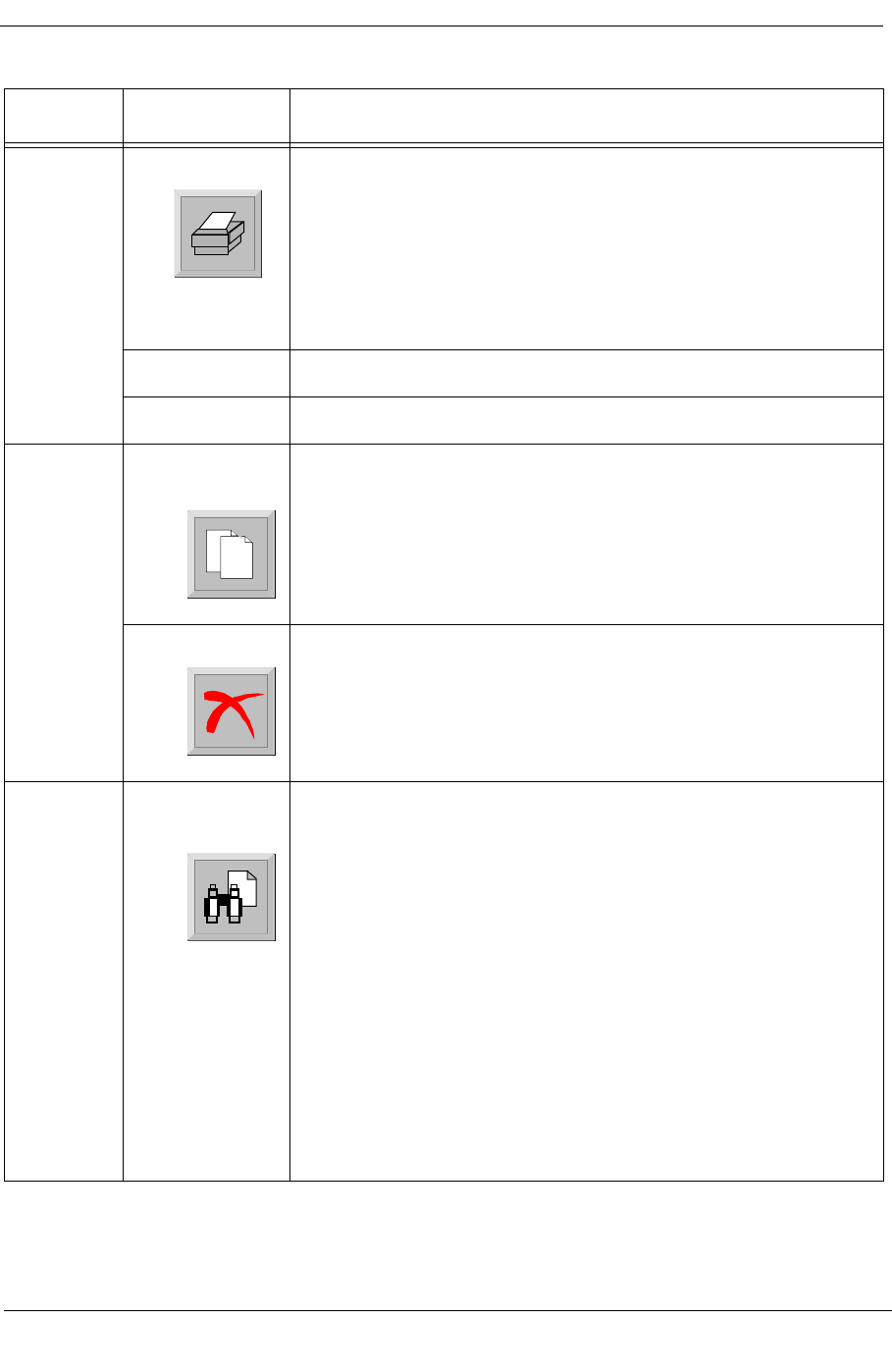
- Menu Options & Buttons 35
- (continued) 36
- SpectroRx: Case Data 38
- Loss of Signal 38
- Button Description 39
- 2-18 User’s Guide 5.0rev1 42
- Chapter 3 43
- Preparing a Strategy 49
- SpectroRx Field Requirements 52
- Editing an Existing Case 53
- 600 Cases 54
- Opening a Blank Case 55
- SpectroRx Worksheets 57
- Worksheet I - Skeleton Cases 58
- Chapter 4 61
- How a Multi-User System Works 62
- Procedure Summary 63
- Chapter 5 69
- How To Use the Case Library 70
- Finding Similar Cases 71
- Using Runable Solutions 73
- SpectroRx: Copy Solution From 76
- Printing a Case 78
- SpectroRx: Print 79
- Mailing a Case 80
- SpectroRx: Send To 81
- 5-14 User’s Guide 5.0rev1 82
- Chapter 6 83
- Commands 84
- SpectroRx: Question 85
- Deleting Case Number 12, OK? 85
- Syntax: cbr_execute \ 86
- Syntax: cbr_exit 87
- Example: cbr_exit [Return] 87
- Syntax: cbr_purge 91
- Example: cbr_purge [Return] 91
- Syntax: cbr_retrieve 92
- Syntax: cbr_save 94
- 6-14 User’s Guide 5.0rev1 96
- Chapter 7 97
- Step 1: Setting up Cases 98
- AlarmNotifier 100
- The Integration Tasks 102
- Running the Integrated System 104
- Chapter 8 105
- Welcome to SpectroRx 106
- SpectroRx Web Functionality 107
- Netscape: SpectroRx 108
- 5 Cases similar to Case 3 109
- Case 463 110
- Appendix A 113
- The Installation Process 114
- Installation Procedure 115
- Make sure the SG status box 117
- Running Media Extract 422275 118
- Appendix B 119
- SpectroRx Environment Files 120
- 9031666 E9 Index 125
Manuais e produtos relacionados com Redes Cabletron Systems FLIU-1
 (71 páginas)
(189 páginas)
(92 páginas)
(70 páginas)
(150 páginas)
(203 páginas)
(291 páginas)
(69 páginas)
(81 páginas)
(258 páginas)
(28 páginas)
(71 páginas)
(189 páginas)
(92 páginas)
(70 páginas)
(150 páginas)
(203 páginas)
(291 páginas)
(69 páginas)
(81 páginas)
(258 páginas)
(28 páginas)
© 2020, manymanuals-pt.com. Todos os direitos reservados. | 0.040 s |
 Manymanuals.com
 Manymanuals.de
 Manymanuals.fr
 Manymanuals.it
 Manymanuals.pl
 Manymanuals.cz
 Manymanuals.es
 Manymanuals-pt.com
Comentários a estes Manuais